

Download Windows 365 Cloud PC – Secure Cloud‑Based Windows OS, Business‑Ready Virtual Desktop
Overview
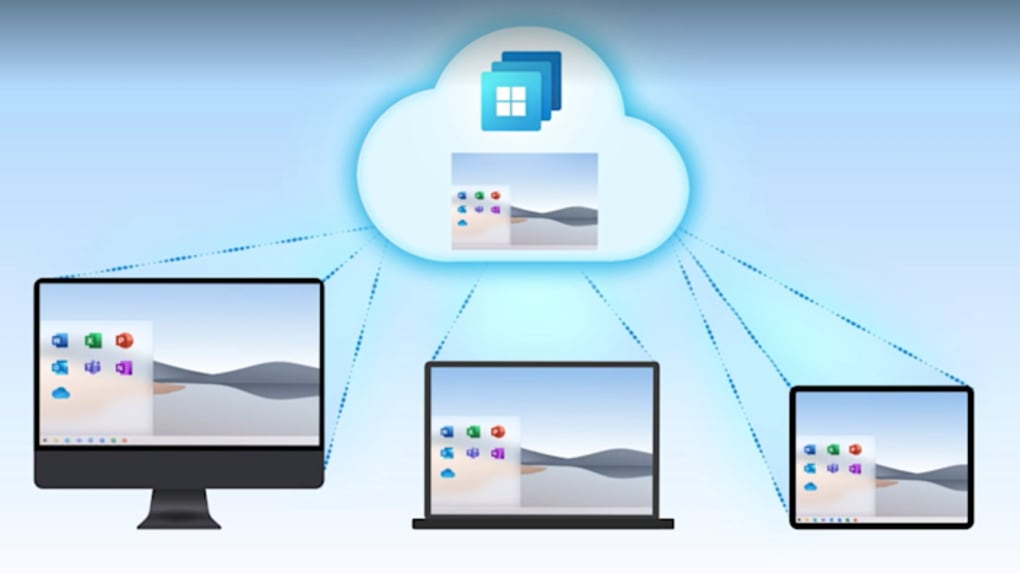
Windows 365 Cloud PC is Microsoft’s answer to the growing demand for flexible, on‑demand computing that doesn’t tie you to a physical machine. Built on the same Azure backbone that powers Office 365 and other enterprise services, Windows 365 streams a full Windows 10 or Windows 11 operating system to any device that can run a modern browser or the Microsoft Remote Desktop app. Whether you’re on a thin client in a conference room, a MacBook in a coffee shop, or an iPad on a cross‑continent flight, the Cloud PC delivers a familiar desktop experience without the need for local storage or heavy‑duty hardware.
Designed primarily for businesses, Windows 365 comes in two subscription tiers – Business and Enterprise – each offering a range of CPU, RAM, and storage configurations to match the workload of a single user or an entire department. The service eliminates the traditional overhead of managing physical desktops, applying patches, or provisioning software. All updates are handled by Microsoft in the background, ensuring that every user always runs the latest, most secure version of Windows.
Because the operating system lives in the cloud, data never resides on the endpoint device unless you explicitly choose to download files. This model dramatically reduces the risk of data loss from device theft or hardware failure. Additionally, the virtualization layer isolates each Cloud PC, providing a security sandbox that meets many compliance standards out of the box.
In short, Windows 365 Cloud PC is a subscription‑based, secure, and highly scalable solution that lets organizations turn any device into a full‑featured Windows workstation. It’s a compelling option for remote‑first teams, traveling sales forces, and enterprises looking to simplify IT operations while maintaining a consistent user experience across platforms.
Key Features of Windows 365 Cloud PC
- Full Windows OS in the Cloud: Run Windows 10 or Windows 11 with all native capabilities, including Microsoft Office, Adobe Creative Cloud, and custom line‑of‑business applications.
- Device‑agnostic Access: Connect via any modern web browser or the Microsoft Remote Desktop client on Windows, macOS, iOS, Android, and Linux.
- Scalable Configurations: Choose from a menu of CPU, RAM, and storage options ranging from 2 vCPU/4 GB RAM/64 GB SSD to 8 vCPU/32 GB RAM/512 GB SSD.
- Automatic Updates & Patching: Microsoft handles OS and security updates, reducing the administrative burden on IT teams.
- Integrated Security: Built‑in Azure security controls, multi‑factor authentication, and conditional access policies protect the virtual desktop environment.
- Seamless Data Sync: User profiles, settings, and installed apps persist across sessions, ensuring a consistent experience regardless of the endpoint.
- Hybrid Deployment Options: Combine Cloud PCs with on‑premises Windows Server environments for a truly hybrid workforce.
- Enterprise‑grade SLA: Microsoft guarantees 99.9 % availability, backed by Azure’s global network of data centers.
- Cost‑Predictable Pricing: Fixed monthly subscription per user eliminates surprise capital expenditures.
- Compliance Ready: Meets standards such as ISO 27001, SOC 1/2/3, and GDPR out of the box.
These features collectively make Windows 365 a versatile platform for organizations that need to support a mobile workforce while keeping IT costs under control. The ability to spin up a new Cloud PC in minutes, assign it to a user, and have it fully configured with the required software is a game‑changer for rapid onboarding and temporary project teams.
Another noteworthy aspect is the integration with Microsoft Endpoint Manager (Intune) and Azure Active Directory. IT admins can push policies, enforce compliance, and manage licenses centrally, just as they would with on‑premises devices. This tight integration reduces the learning curve for administrators already familiar with the Microsoft ecosystem.
Finally, the performance of Windows 365 is heavily dependent on the user’s internet connection. Microsoft recommends a minimum of 10 Mbps for a smooth experience, but the service can adapt to lower bandwidth by dynamically adjusting visual fidelity and input latency, ensuring that even users on modest connections can stay productive.
Installation & Usage Instructions
1. Subscribe and Provision
Start by purchasing a Windows 365 subscription through the Microsoft 365 admin center. After logging in with an administrator account, navigate to “Devices → Windows 365” and select the appropriate plan (Business or Enterprise). Choose the desired configuration (CPU, RAM, storage) for each user, assign licenses, and click “Create Cloud PC.” The provisioning process typically takes a few minutes per device.
2. Configure Identity & Security
Link Windows 365 to Azure Active Directory to enable single sign‑on (SSO). Set up Multi‑Factor Authentication (MFA) and conditional access policies to control which devices or networks can connect. For enterprises with strict compliance needs, configure Microsoft Endpoint Manager to push security baselines, encryption settings, and application policies.
3. Access via Browser
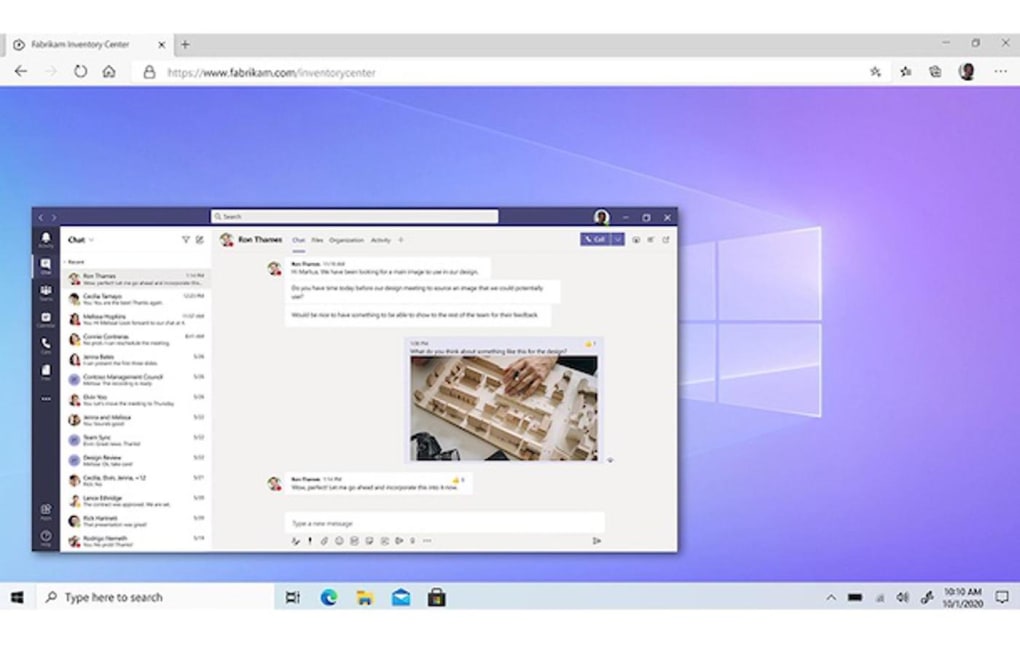
Once the Cloud PC is ready, the user receives an email with a unique URL. Open the link in any modern browser (Edge, Chrome, Firefox, Safari). The browser will launch a full‑screen Remote Desktop session that streams the Windows desktop. No plug‑ins are required; the experience relies on HTML5 and WebRTC for low‑latency interaction.
4. Access via Remote Desktop App
For a richer experience, download the Microsoft Remote Desktop app from the respective app store (Windows Store, Mac App Store, Google Play, Apple App Store). Open the app, sign in with Azure AD credentials, and the Cloud PC will appear in the “PCs” list. Tap to connect, and the full Windows environment loads instantly.
5. Managing the Cloud PC
Administrators can monitor usage, performance, and health via the Windows 365 admin portal. From here you can resize resources, reset passwords, or de‑provision a Cloud PC when an employee leaves. Users can also reset their own password through the Azure AD self‑service portal.
6. Optimizing Performance
For optimal experience, ensure the endpoint device runs the latest OS updates and the browser is up to date. Use a wired Ethernet connection or a stable Wi‑Fi network with at least 10 Mbps download/upload speed. If latency is high, reduce visual settings in the Remote Desktop client (e.g., disable desktop background, lower resolution).
Following these steps will have you up and running with a fully functional Windows 365 Cloud PC in under 15 minutes, ready for productive work from anywhere.
Compatibility, Pros & Cons
Operating System Compatibility
Windows 365 Cloud PC can be accessed from Windows 10/11, macOS 10.15 or later, iOS 13 or later, Android 7 or later, and most Linux distributions that support a modern web browser. The service is agnostic to the underlying hardware, meaning you can use a low‑spec Chromebook, a legacy Windows 7 PC, or a high‑end iPad without any additional drivers.
Pros
- Zero‑maintenance OS: Microsoft handles patches, updates, and security, freeing IT resources.
- Device independence: Users can switch between any supported device without losing work or settings.
- Scalable pricing: Predictable monthly cost per user with the ability to upgrade resources on demand.
- Enterprise security: Built‑in Azure security controls, MFA, and compliance certifications.
- Fast onboarding: New employees receive a ready‑to‑use desktop within minutes.
- Reduced hardware spend: Organizations can extend the life of existing thin clients.
Cons
- Requires constant internet: Offline access is not possible; a stable connection is mandatory.
- Higher recurring cost: Subscription fees can add up over time compared to a one‑time hardware purchase.
- Performance tied to bandwidth: Low‑speed connections may experience lag or reduced visual fidelity.
- Not for personal use: Licensing is restricted to commercial environments.
- Limited GPU intensive workloads: While suitable for most business apps, high‑end gaming or 3D rendering may need specialized Azure Virtual Desktop configurations.
FAQ (Frequently Asked Questions)
Can I use Windows 365 on a Chromebook?
Yes. As long as the Chromebook runs a modern browser (Chrome 90+), you can access your Cloud PC via the web or by installing the Remote Desktop app from the Google Play Store.
What happens to my data if I lose internet connectivity?
Your session will pause, but all files and settings remain stored in the cloud. Once connectivity is restored, you can resume work exactly where you left off.
Is Microsoft Teams integrated with Windows 365?
Absolutely. Teams runs natively inside the Cloud PC, and you can also launch the Teams web app directly from the browser for a lightweight experience.
Can I attach my existing OneDrive or SharePoint files?
Yes. Since Windows 365 is part of the Microsoft 365 ecosystem, you can sign in to OneDrive, SharePoint, and other services with the same credentials and access all your cloud‑stored files instantly.
How does licensing work for multiple users?
Each user requires an individual Windows 365 license. You can assign licenses centrally through the Microsoft 365 admin portal, and you can scale up or down as staff numbers change.
Conclusion & Call‑to‑Action
Windows 365 Cloud PC stands out as a mature, enterprise‑grade solution that brings the full Windows experience to any device with an internet connection. Its strengths lie in eliminating hardware constraints, delivering a consistent desktop environment, and providing a security model that aligns with modern compliance requirements. While the reliance on a stable network and the ongoing subscription cost may be considerations for some, the productivity gains for remote‑first teams and the reduction in IT overhead often outweigh these concerns.
If your organization is looking to empower a mobile workforce, streamline desktop management, or simply modernize its IT infrastructure, Windows 365 offers a compelling blend of flexibility, security, and scalability. The quick provisioning process and seamless integration with Azure and Microsoft 365 make it an attractive choice for businesses of all sizes.
Ready to transform the way your team works? Click the button below to start a free trial, explore pricing plans, and experience a Windows desktop in the cloud—no hardware upgrades required.
Start Your Free Trial of Windows 365
Overall Rating: 4.5 / 5



.png)



